华为USG防火墙配置命令
索引
- 前言
- 华为USG防火墙配置命令
- 常用命令
- 查看license信息及esn码
- 查看接口IP信息
- 设置接口IP地址
- 设置vlan1管理地址,并允许ssh及https访问
- 设置静态默认路由
- 设置旗标和登录成功后提示
- 设置时区及日期
- 设置console口密码及超时时间
- 设置console口使用用户名密码登录(usg2000)
- 创建AAA用户管理console口,ssh,web
- web登录配置管理
-
- 1. 配置USG的IP地址(略)
- 2. 配置UGS接口Web设备管理
- 3. 启动web管理功能
- telnet登录配置管理
-
- 1. 开启telnet服务
- 2. 配置USG接口telnet设备管理
- 3. 配置vty 并设置密码登录(或者参照下一条使用用户密码登录)
- 4. 配置vty并设置用户名密码登录即AAA认证
- 通过SSH方式登录管理
-
- 1. 启用Stelnet服务
- 2. 配置防火墙管理接口允许SSH管理
- 3. 配置RSA本地密钥对
- 4. 配置vty线路
- 5. 配置ssh登录用户名密码
- 文件管理
- 将flash中的文件备份到TFTP和FTP
- 设置系统启动使用的文件及配置文件
- 将防火墙设置为ftp服务器
- 安全区域设置并将接口划入该区域
- 配置安全策略
-
- 配置安全策略示例
- 使用地址组,服务组,时间组的方式配置安全策略
- 查看路由及设置默认路由
- 设置接口为交换口
- 查看防火墙会话表
- 将ASPF检测FTP流量的端口改为其他端口
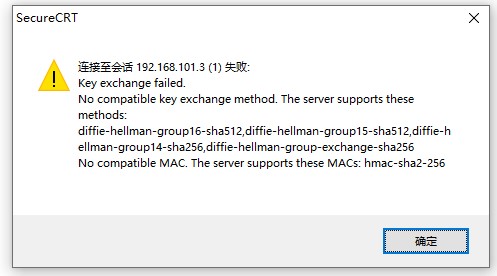
- 番外:SSH方式连接华为USG2000防火墙报错
- 华为USG防火墙重置密码
- 总结
-
前言
其实防火墙配置,只需要配置到能使用web方式管理,剩下的都在网页上配置即可,有人喜欢用命令配置,但我说下用命令配置的弊端,首先是安全策略的备注不好写,还有就是策略的顺序不方便调整,需要提前规划好,还有就是容易出错,真的完全没有必要,你又不是配置交换机,防火墙用网页配置,又方便又不容易出错。需要注意的一点,华为的USG防火墙型号不同,在用命令创建用户的命令会有些出入,不过都是大同小异。再啰嗦一下,防火墙的安全策略是讲究顺序的,从上到下依次执行,在这点上和windows系统自带的防火墙是不同的,windows防火墙不讲究什么顺序,是按照最佳匹配原则。文章来源地址:https://www.yii666.com/blog/448595.html
华为USG防火墙配置命令 常用命令 <SRG> //用户视图,用户视图只能使用查看命令 <SRG>? //查看用户视图下的所有命令 <SRG>display version //查看VRP系统版本 <SRG>system-view //进入系统视图 sysname R1 //修改设备名称为R1 display clock //查看系统时间 quit //返回上一级 <SRG>save //保存配置 <SRG>display saved-configuration //查看保存的配置 <SRG>display current-configuration //查看当前运行的配置 <SRG>reboot //重启设备 <USG6000>reset saved-configuration //恢复出厂配置 查看license信息及esn码 display license //查看license信息 display esn //查看esn码 查看接口IP信息 display ip interface brief //查看接口IP简要信息 display current-configuration interface GigabitEthernet 1/0/0 //查看该接口的运行信息 设置接口IP地址 interface GigabitEthernet 0/0/0 //进入接口模式 ip address 10.10.10.11 24 //24为子网掩码 shutdown //禁用接口 undo shutdown //启用接口 display this //查看该接口信息 设置vlan1管理地址,并允许ssh及https访问 interface Vlanif 1 ip address 192.168.80.100 24 service-manage ssh permit service-manage https permit service-manage ping permit //注意这种方式会导致策略不生效 undo service-manage enable //必须关闭服务管理,策略才生效 设置静态默认路由 ip route-static 0.0.0.0 0.0.0.0 192.168.80.1 设置旗标和登录成功后提示 header login information "zhuhai huanao zaixianjianceshi usg2000" header shell information "Wecome to Huawei USG2000" 设置时区及日期 <R1>clock timezone beijin add 08:00 //设置时区为北京东八区 <R1>clock datetime 11:20:10 2021/02/03 //11点20分10秒,2021年02月03日 设置console口密码及超时时间 user-interface console 0 //进入console口配置模式 authentication-mode password cipher huawei@123 //设置密码为huawei@123 idle-timeout 20 //设置超时时间为20分钟 设置console口使用用户名密码登录(usg2000) user-interface console 0 authentication-mode aaa //认证模式为AAA aaa //进入AAA配置模式 local-user chb password cipher huawei@123 //创建chb用户名,密码为huawei@123 local-user chb service-type terminal //指定chb用户的类型为console口用 local-user chb level 15 //指定chb用户的权限等级为15(15表示最高权限) display local-user //查看本地用户 创建AAA用户管理console口,ssh,web aaa //进入AAA配置模式 manager-user chbadmin //创建用户chbadmin password cipher huawei@123 //设置密码为huawei@123 service-type terminal ssh web //指定为console,ssh,web用 level 15 //设置级别为15,数值越大权限越高,15是最高权限 web登录配置管理1. 配置USG的IP地址(略)
2. 配置UGS接口Web设备管理
service-manage enable //默认已开启 service-manage https permit //允许https,也可以设置允许Ping3. 启动web管理功能
web-manager enable web-manager security enable port 8443 web-manager timeout 60 //设置超时时间为60分钟 telnet登录配置管理1. 开启telnet服务
telnet server enable2. 配置USG接口telnet设备管理
service-manage enable service-manage telnet permit //设置接口允许telnet service-manage ping permit //设置接口允许ping3. 配置vty 并设置密码登录(或者参照下一条使用用户密码登录)
user-interface vty 0 4 //进入vty配置模式 protocol inbound telnet //配置vty允许telnet authentication-mode password cipher huawei@123 //设置认证模式为密码 user privilege level 3 //设置权限级别为34. 配置vty并设置用户名密码登录即AAA认证
user-interface vty 0 4 protocol inbound telnet authentication-mode aaa //设置认证模式为AAA idle-timeout 60 //设置超时时间60分钟 aaa //进入AAA配置 manager-user telchb //创建用户telchb password cipher huawei@123 //设置密码为huawei@123 service-type telnet //设置服务类型为telnet level 3 //设置级别为3 通过SSH方式登录管理1. 启用Stelnet服务
stelnet server enable2. 配置防火墙管理接口允许SSH管理
service-manage enable service-manage ssh permit3. 配置RSA本地密钥对
rsa local-key-pair create4. 配置vty线路
user-interface vty 0 4 authentication-mode aaa protocol inbound ssh //允许ssh idle-timeout 60 //设置超时时间为60分钟5. 配置ssh登录用户名密码
ssh user chbssh ssh user chbssh authentication-type password ssh user chbssh service-type stelnet aaa local-user chbssh password cipher huawei@123 local-user chbssh service-type ssh local-user chbssh level 3 文件管理 <SRG>dir //查看当前目录文件 <SRG>copy private-data.txt 123.txt //复制private-data.txt到当前目录并改名为123.txt <SRG>move 123.txt 111.txt //移动123.txt到当前目录并改名为111.txt <SRG>delete 111.txt //删除111.txt,并非彻底删除可以恢复 <SRG>dir /all //查看当前目录所有文件 <SRG>undelete 111.txt //恢复刚才删除的文件111.txt <SRG>delete /unreserved 111.txt //彻底删除111.txt <SRG>mkdir flash:/backup //在根目录下创建文件夹backup <SRG>cd backup //切换目录到backup文件夹中 <SRG>pwd //查看当前路径 <SRG>cd / //切换到根目录 <SRG>copy private-data.txt flash:/backup/private-data-bak.txt //复制文件到指定路径 <SRG>move private-data.txt flash:/private-data.txt //移动文件到指定路径 将flash中的文件备份到TFTP和FTP #将flash中的vrpcfg.zip上传到tftp服务器 <R1>tftp 192.168.10.11 put flash:/vrpcfg.zip #将tftp服务器的vrpcfg2.zip下载到flash中 <R1>tftp 192.168.10.11 get vrpcfg2.zip flash:/vrpcfg2.zip <R1>ftp 192.168.10.11 21 //登录ftp服务器端口号21 输入用户名 输入密码 get 111.txt 111.txt //下载ftp中的111.txt到flash中 put vrpcfg.zip vrpcfg-bak.zip //上传flash中的vrpcfg.zip到ftp中 设置系统启动使用的文件及配置文件 <SRG>display startup //查看系统启动使用的系统文件和配置文件 <SRG>startup system-software filename1.zip //设置系统启动文件 <SRG>startup saved-configuration vrpcfg2.zip //指定保存配置的文件 将防火墙设置为ftp服务器需设置防火墙规则允许(略)文章地址https://www.yii666.com/blog/448595.html网址:yii666.com<
ftp server enable //开启ftp服务 aaa manager-user ftpchb password cipher huawei@123 service-type ftp //指定服务类型为ftp ftp-directory hda1: //指定ftp的根目录为hda1 level 3 undo ftp server //关闭ftp服务 安全区域设置并将接口划入该区域 firewall zone untrust //进入untrust区域配置 add interface GigabitEthernet 1/0/0 //将该接口加入到该区域 display this //查看该区域的配置信息 firewall zone trust add interface Vlanif 1 //将vlan1接口划入该区域 firewall zone name Inbound //创建区域Inbound ,并进入该区域配置 set priority 90 //设置优先级为90,数值越大信任级别越高 add interface GigabitEthernet 1/0/5 //将该接口加入到该区域 display zone //查看区域信息 配置安全策略 security-policy //进入安全策略配置 default action deny //设置默认策略为禁止 rule name SUL02 //新建一条规则名称是SUL02 source-zone untrust //源区域是untrust destination-zone local //目标区域是local action permit //动作是允许 display security-policy rule all //查看所有安全策略条目名称 display security-policy rule name SUL02 //查看SUL02这条安全策略 interface GigabitEthernet 1/0/1 //进入该接口模式 undo service-manage enable //关闭服务管理,才能使安全策略生效配置安全策略示例
security-policy rule name UT02 //新建一个规则名称叫UT02 source-address 192.168.10.12 32 source-address 192.168.11.0 0.0.0.255 //使用反掩码表示地址范围,即192.168.11.0/24这个网段 source-address range 192.168.12.1 192.168.12.50 //指定地址范围在192.168.12.1~192.168.12.50 destination-address any //目标地址是any,表示所有地址 user any //用户是所有用户,这条命令是默认的,可以省略 service protocol tcp destination-port 22 //指定目标端口是TCP的22号端口 service protocol udp destination-port 888 //指定目标端口是UDP的888端口 service protocol icmp //允许ping service protocol icmp icmp-type echo-reply //上一条命令包含这条命令,这个表示只允许icmp的回显包 undo rule name UT02 //删除UT02这条规则 display this //查看规则内容使用地址组,服务组,时间组的方式配置安全策略
- 创建相应的地址组
- 创建相应的服务组
- 创建相应的时间组
- 配置安全策略时使用刚才创建的组
- 防火墙默认是开启ASPF检测的,针对多协议服务,如FTP服务,ASPF会针对FTP服务临时开放安全策略
SecureCRT使用SSH方式连接华为USG2000防火墙报错如下:
The client has disconnected from the server. Reason: Message Authentication Code did not verify (packet #4). Data integrity has been compromised.解决方法:
华为USG防火墙重置密码
改为使用SSH1协议登录即可
通过telnet该地址的22端口可以看出SSH使用的版本是1.9以下操作会初始化华为USG防火墙,所有配置清空哦
通电情况下,用圆珠笔按住reset按钮10秒,笔记本接好console口,等待画面,出现提示按ctrl+B,输入默认密码O&m15213 然后选择对应的数字“Reset Factory Configuration”,返回后选择数字1,启动系统,然后输入默认的用户名admin,默认密码Admin@123 网页登录地址是https://192.168.0.1:8443 用户名密码也是admin和Admin@123文章来源地址https://www.yii666.com/blog/448595.html
总结其实防火墙本身的管理web也是有漏洞的,可以通过只让某一个IP地址能够访问来增加安全性,但也不能保证绝对安全,我这边的做法是,单独留一个接口,用与web管理,当然弊端就是配置防火墙需要到现场用笔记本接上那个保留的接口才能配置,好处就是黑客想入侵,必须要通过社工的方式,接触到这台设备。说实话有点异想天开了,首先问问自己,你的设备值不值得别人这样做,简直是拿高射炮去打蚊子,没人会去干这种蠢事的
- 版权声明:本文内容来源于网络,版权归原作者所有,此博客不拥有其著作权,亦不承担相应法律责任。文本页已经标记具体来源原文地址,请点击原文查看来源网址,站内文章以及资源内容站长不承诺其正确性,如侵犯了您的权益,请联系站长如有侵权请联系站长,将立刻删除
最近项目
- 海康威视 DS-A80648S 48盘位CVR网络存储设备2023年6月27日 - 下午9:52
- 思科CISCO Catalyst 9100 无线接入点2023年6月24日 - 下午11:23
- 思科 Cisco Secure Firewall 3100 Series2023年6月24日 - 下午10:46
 思科 Catalyst 9200 系列交换机2023年6月24日 - 下午9:52